Opinionated Typography: Space
My typographic opinions remain unashamed. This time, I’m looking at space: the space that content occupies and the space that surrounds it.
Contents
Line length
This is probably less of a problem on mobile, but larger screens present a choice. How long?
Indeed, blocks of text that stretch across the width of a big screen can be tricky to read. Even Wikipedia has realised this.
According to UX Collective, line lengths should be “45 to 75 characters”, with 66 as the “sweet spot” (this includes letters and spaces).
This can be easily achieved with the ch unit. So, max-inline-size: 66ch on text block elements (p, ul, ol, etc.) should work. What I’ve found, though, is that if you count ’em, you tend to get more than 66 letters and spaces. Why? Well, the ch unit is based on a specific character: the zero (0). So, if you do want 66 actual characters, drop the number down a bit. I go for 60.
For a little tighter control, I use the min() function. I don’t want text to go past a certain point, even if it hasn’t reached the maximum line length character-wise. On my website, for example, the introductory paragraph is scaled up from other paragraphs. The ch width on its own would mean that it looks “fatter” than other paragraphs. I don’t want that, so I reach for:
:where(p, ul, ol) {
  max-inline-size: min(66ch, var(--prose-block-width));
}
The min() function here chooses whichever is the smaller calculated value. For the introductory paragraph, it’s likely to be the --prose-block-width custom property. For regular paragraphs, it’s 66ch. On mobile, the text defaults to the width of the available space.
Wrapping
Typography on the web has become a lot more powerful in the last couple of years. It’s not print design (and it can’t be), but some features of print typography have been difficult to get right on the web. One of these is wrapping.
In print, you might have heard of widows, orphans and runts.
- A widow is a single line of a paragraph at the top of a page or column, separated from the rest of the paragraph.
- An orphan is a single line of a paragraph at the bottom of a page or column, with the rest of the paragraph on the next page or column.
- A runt is a single word on a line of its own at the end of a paragraph.
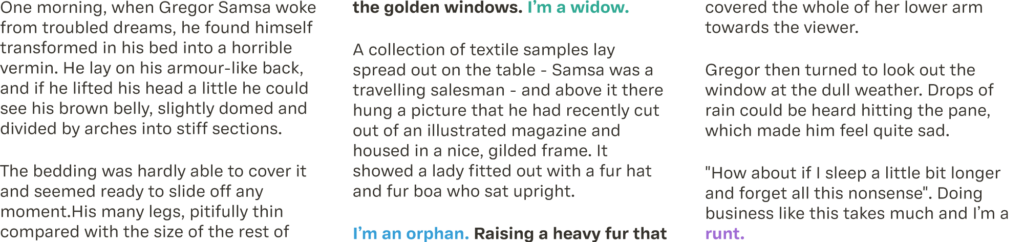
How widows, orphans and runts appear in unmodified text blocks.
Solving these on the web is difficult because the width of paragraphs (as mentioned above) is not something you have much control over.
Widows and orphans are only really an issue when you’re using multicolumn layouts or printing a page. There are CSS properties you can apply to your stylesheet, though, to ensure these won’t be a problem:
:where(p) {
  orphans: 2;
  widows: 2;
}
When it comes to the “runt”, this is something you might want to tackle. The text-wrap property has a couple of new values that can help with this.
text-wrap: balance looks at your lines of text and attempts to “balance” them; i.e., it tries to make each line take up roughly the same amount of space.
text-wrap: pretty is a little more vague, but it will try to prevent single-word runts from sitting on their own in the last line of a block of text.
Before going further, it’s worth pointing out that both of these can be computationally expensive. text-wrap: balance should only be used on short blocks of text, and text-wrap: pretty should be reserved for pages where quality is more important than speed.
My rule of thumb is to use text-wrap: balance for headings and summary text (like the index cards on the homepage of my site). Keep text-wrap: pretty for p tags on blog pages.
I would say, though, use these with care. Different browsers treat them differently, so test well!
Line Spacing
Line height is the web’s take on “leading” (pronounced “led-ing”, not “leed-ing”). Leading originates from the practice of putting little bits of lead between lines of text. On the web, though, this is a little different. Line height is the space in which letters sit, roughly vertically centred. It provides a buffer above and below the text.
Choosing a line height depends on context. Much like the type scale in the previous instalment, I like to use a ratio for different line heights. Line-height values themselves should be unitless (they don’t have to be, but I’d strongly recommend it). For example, line-height: 1.6 is 1.6 times the size of the text it contains.
round(calc(var(--base-line-height) * pow(var(--line-height-ratio), var(--n))), 0.01);
The above function, like our text-size approach, takes a base line-height value (e.g., 1.6) and multiplies it by the step ratio (e.g., Major Second, 1.125) to the power of the step number. The round() function then rounds it to the nearest hundredth.
The resulting line heights would be:
:root {
  --line-height-1: 1.8;
  --line-height-0: 1.6;
  --line-height--1: 1.42;
  --line-height--2: 1.26;
  --line-height--3: 1.12;
  --line-height--4: 1.00;
}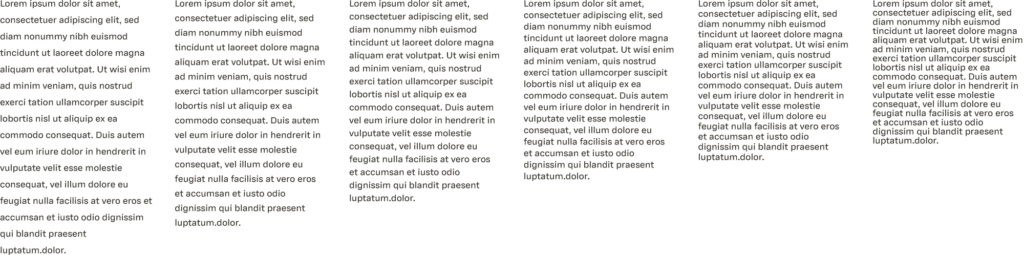
How a line height scale can change the rhythm of a paragraph.
From these, you can decide which texts get which line heights.
WCAG Success Criterion 1.4.12 uses a line height of at least 1.5 times the font size as a test value for body text. I try to be a little more generous and use 1.6. This also feels harmonious with the 16px base size for text (the browser default).
Headings and microcopy
For headings and microcopy, choose a tighter line height; for display headings like the one at the top of this article, go smaller again. Because you’re using ratios, line height should scale with your text.
Paragraph Spacing
WCAG Success Criterion 1.4.12 also uses paragraph spacing of at least twice the font size as a test value.
Vertical rhythm is really important, especially in articles like this. My approach is to make the spacing below paragraphs, list blocks (ul and ol) and headings the same. Use your judgement here, but consistency is key. On this page, I use 1.25rem for bottom margins and half that amount for list items (li).
The space above headings, though, is a little different. The law of proximity means that headings should be closest to the paragraphs they’re connected to. Rather than eyeballing it, use one value (like 1.5em). em units are handy here, as they allow the space to adjust depending on your heading size. Larger h2s, for example, will have a bit more breathing space above them than h3s.
Letter Spacing
Okay, we’re approaching the end. It’s been quite a ride! There are just a couple of quick ones left. Letter spacing is probably something you don’t bother with that often, and most of the time you don’t need to. CSS allows you to set letter-spacing to a positive or negative value in any unit, with the property defaulting to zero (0).
There are times, though, when a tweak is useful. If you have a token system, include a mini-ramp of letter-spacing values for ease of access.
// Letter spacing

--typography-spacing-tight: -0.0375em;
--typography-spacing-compact: -0.025em;
--typography-spacing-normal: 0em;
--typography-spacing-loose: 0.05em;
--typography-spacing-wide: 0.125em;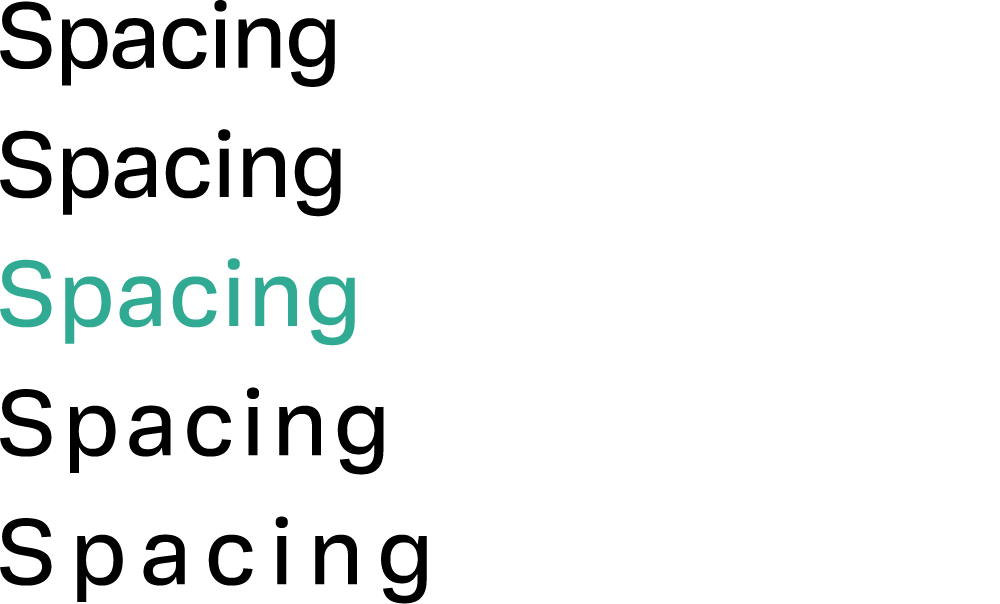
The difference a change in letter spacing can make to a word.
When it comes to headings, larger titles can be visually improved with tighter spacing between letters. Similarly, you may have small headings — perhaps divider headings in your navigation set in small caps. Slightly looser spacing can provide a little extra readability.
Word Spacing
Finally, word spacing. This is something you’ll rarely need. My only suggestion here is for display titles where you may have tightened the spacing between letters: a little extra spacing between words can add a bit of polish.
Back to top